
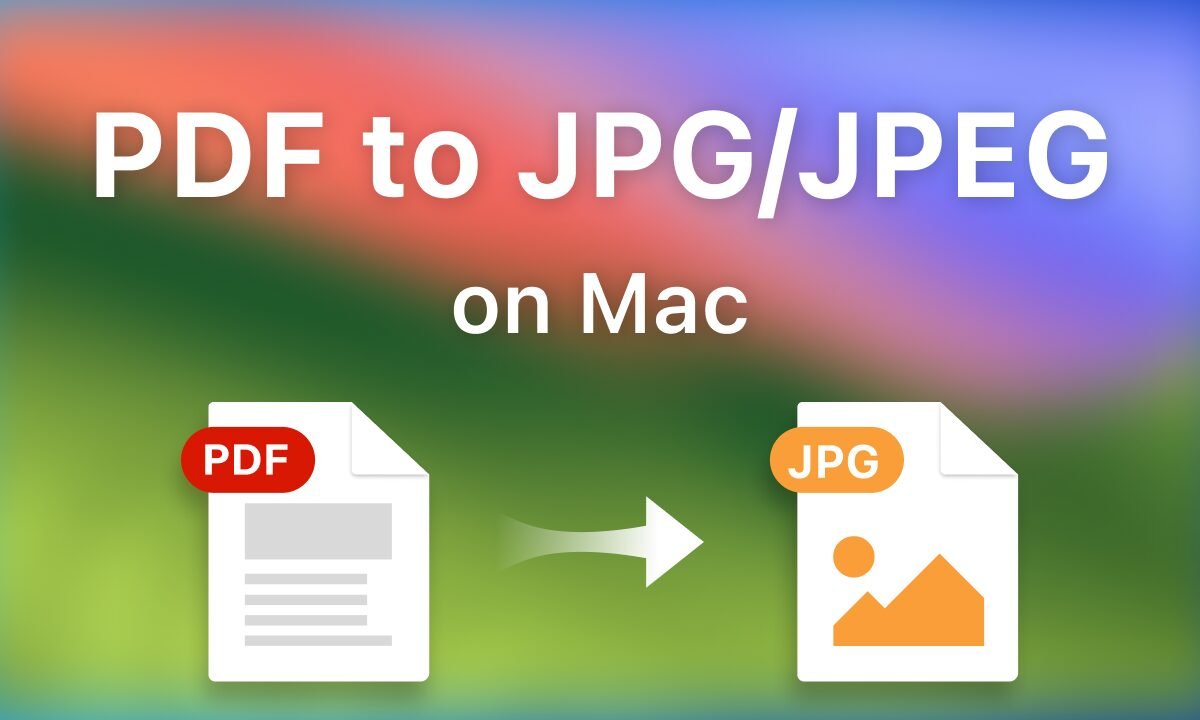
PDF files are everywhere. We use them for contracts, invoices, brochures, eBooks, reports, presentations, and scanned documents. They are reliable, secure, and easy to share. But sometimes, you do not need a full PDF. You only need an image. That is where the need to convert PDF files into JPG images becomes important.
Whether you want to upload a document page on a website, share it on social media, insert it into a presentation, or send it quickly through messaging apps, JPG images are often more flexible. In this guide, you will learn why people convert PDF files into JPG images, when it makes sense, and how to do it easily without losing quality.
Let us break it down step by step.
Why Convert PDF Files Into JPG Images?
There are several practical reasons to convert PDF files into JPG images.
1. Easy Sharing
Many platforms do not allow direct PDF uploads. Social media platforms, online forms, and some websites prefer image formats. When you convert PDF files into JPG images, you can upload them instantly.
2. Better Compatibility
JPG is one of the most widely supported formats in the world. Almost every device can open JPG files without special software. That is not always the case with PDF files.
3. Use in Presentations and Designs
If you are working on PowerPoint slides, website banners, blog posts, or graphic design projects, using images is easier than embedding PDF pages. Converting makes editing smoother.
4. Faster Preview
Images load quickly. If you want users to preview a document page online without downloading a full PDF, a JPG image works perfectly.
What Is JPG Format?
Before you convert PDF files into JPG images, it helps to understand what JPG is.
JPG, also known as JPEG, is a compressed image format. It reduces file size while maintaining decent quality. This makes it ideal for:
- Web use
- Email attachments
- Online uploads
- Mobile sharing
However, JPG uses lossy compression. That means a small amount of quality may be reduced during conversion. The key is to choose high-resolution settings to keep the image sharp.
When Should You Convert PDF Files Into JPG Images?
Not every situation requires conversion. Here are common scenarios where converting makes sense:
- You want to extract a single page from a multi-page PDF.
- You need to post a document page on Instagram or Facebook.
- You want to add a PDF page into a design project.
- You need a quick visual preview for marketing.
- You want to attach a document in image format instead of PDF.
If you still need text editing, keeping the file in PDF format may be better. But for visual use, JPG is perfect.
How to Convert PDF Files Into JPG Images
Now let us talk about the actual process. It is simpler than most people think.
Method 1: Use an Online Converter
Online tools are the fastest way to convert PDF files into JPG images.
Steps:
- Open a trusted PDF to JPG converter website.
- Upload your PDF file.
- Choose quality or resolution settings.
- Click convert.
- Download your JPG images.
Most online tools convert each PDF page into a separate JPG file. Some allow you to select specific pages.
This method is ideal for quick tasks. However, avoid uploading confidential documents to unknown websites.
Method 2: Use Desktop Software
If you handle sensitive files, desktop software is a safer option.
Programs like Adobe Acrobat allow you to export PDF pages as images.
Basic steps:
- Open the PDF file.
- Click on Export.
- Choose Image format.
- Select JPG.
- Save the file.
This method usually gives better control over image quality and resolution.
Method 3: Screenshot for Single Page
If you only need one page quickly, you can:
- Open the PDF.
- Zoom in for clarity.
- Take a high-resolution screenshot.
- Save it as JPG.
This is not ideal for professional use but works for quick sharing.
Maintaining Quality When You Convert PDF Files Into JPG Images
Quality matters, especially if the PDF contains text, charts, or detailed graphics.
Here are important tips:
Use High Resolution
Always select 300 DPI or higher for print-quality images. For web use, 150 DPI usually works fine.
Avoid Excessive Compression
Some tools compress images too much. Choose “high quality” settings if available.
Check After Conversion
Open the JPG file and zoom in. Make sure text is readable and images look sharp.
Common Issues During Conversion
Sometimes users face small problems when they convert PDF files into JPG images.
Blurry Text
This happens when resolution is low. Increase DPI settings.
Large File Size
High-quality images create bigger files. If needed, compress the JPG separately after conversion.
Cropped Content
Ensure page margins are not cut during conversion. Some tools allow margin adjustments.
Benefits of Using a Reliable PDF to JPG Tool
Using a good conversion tool saves time and effort. Here is what you should look for:
- Fast processing speed
- High-resolution output
- Batch conversion support
- Secure file handling
- Easy interface
A well-designed tool allows you to convert PDF files into JPG images in seconds without technical skills.
Who Needs to Convert PDF Files Into JPG Images?
This feature is useful for many professionals:
Students
Students often submit assignments in image format or upload document previews online.
Digital Marketers
Marketers convert brochures and reports into images for social media posts.
Designers
Designers extract PDF pages for editing and creative projects.
Business Owners
Business owners convert invoices, receipts, and forms into JPG for quick sharing.
Is It Safe to Convert PDF Files Into JPG Images Online?
Security is important.
If your document contains private or confidential information, use trusted tools only. Check if the website:
- Uses HTTPS encryption
- Deletes files after processing
- Has clear privacy policies
For highly sensitive documents, offline software is the safest choice.
Final Thoughts
The ability to convert PDF files into JPG images is more useful than most people realize. It helps with faster sharing, better compatibility, and smoother design workflows. Whether you are a student, marketer, designer, or business owner, this simple conversion can save time and improve flexibility.
The process is straightforward. Upload the file, choose quality settings, convert, and download. Just remember to focus on resolution and security.
Next time you need to share a single document page as an image or upload it to a platform that does not support PDFs, you will know exactly what to do. Converting PDF files into JPG images is quick, practical, and efficient when done the right way.
If you use the right tools and follow the quality tips shared above, you can achieve sharp, professional-looking results every time.